This web site is under construction and contains details of products that will become available in 2024. Details of current DryFire products may be found at: www.dryfire.com
Trouble shooter
Watch out for operating system updates!
Windows and Apple computers usually update themselves in the background - at unpredictable times! Such updates can take quite a long time to download and install and they often tie up the PC's processor and the Wi-Fi connection.
It is always worth checking if an update is in progress - especially if things start to go slowly.
If you have:
- checked your measurements,
- checked the symptoms below,
- checked everything in the setup (lasers and projection) parts of the User Guide
- and you are sure your setup is correct,
please follow the procedure on the support page to contact us.
Check your measurements
DryFire operates internally in metres (m) (see note below) and values entered in inches are converted to metres when the software is running.
So, when entering metric values, "750" (mm) would be interpreted as 750m and "75" (cm) would be interpreted as 75m. Both should have been entered as 0.75m
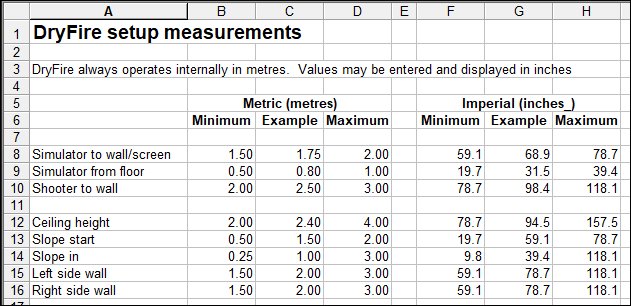
From "Settings", "Calibration", "Full calibration" select "Calibrate". Check "Simulator to wall", "Simulator from floor" and "Shooter from wall".
Click on "Advanced setup" and check the values there. Normally you don't have to enter anything here, but, if you do, double check that the values are reasonable. Don't change the values for "Eye height" and "Right of simulator" - these are established during the muzzle alignment procedure.
Note: there is an exception to the rule - the vertical line used during projections setup is measured in millimetres (mm).
Trouble symptoms:
- The software cannot connect to the simulator
- Shots not seen
- Random shots seen or heard
- "Pull" not heard
- Targets released before calling "Pull"
- Target results don't feel right
- Negative "uh uh" sound when doing alignment
- Hit shown as miss
- Targets going the wrong way
- Changing clay speed
- Adding an add-on
The software cannot connect to the simulator
DryFire Laser System (DLS)
- Remove the USB cable from the PC/laptop. Switch off simulator power. Switch on simulator power. Reconnect the USB cable - the two heads on the simulator should nod once.
If the heads don't nod it is possible the wrong power supply has been used and the protection diodes inside the simulator have blown.
Please click here for a procedure to run some tests on your simulator - including checking the power supply.
- Try a different USB cable.
- Try connecting to a different USB port.
- Try using a different PC/laptop if you have one - the DryFire software does not have to be installed for the heads to nod when power is on and the connection to USB is made.
- Long extension cables can result in a weak USB signal so try a shorter cable to connect the simulator directly to your PC/laptop.
DryFire Projection System (DPS)
- Ensure the DPS-Sensor Unit (DPS-SU) unit is fully charged (the LED on the back will change from red to green when fully charged) and switched on - the switch should be illuminated and the LED flashing red.
Read the battery section of the DPS setup page if the DPS-SU will not switch on.
- Ensure your PC/laptop is connected to the DPS-SU by Wi-Fi.
Read the quick setup section of the DPS setup page about connecting to Wi-Fi.
- Switch off the DPS-SU, close the software, close down your PC/laptop and try again.
Still got problems?
- Select the "continue without using simulator" option.
- Select "Settings", "Support", "Get help", "Contact support".
- Enter your email address, a description of the problem and click "Send".
- This will send us an email along with a detailed log of what the software is doing - this will help us to track down the problem.
Please click here for more details.
Shots not seen
- You may be shooting too late (particularly on wide crossers or fast doubles) or the target may be off the wall/screen and in an area where the camera cannot see the laser pulse from the UGA.
You should be able to take all targets within your comfort zone - a fairly narrow angle either side of your straight ahead position - you shouldn't have to chase targets late in their flight. Speak to your coach or instructor to work on your hold point and target acquisition - particularly on the first bird of a pair.
- Check the Standard Gun Assembly (SGA) is switched on.
- Check the red LED flashes on the SGA when the trigger switch is pressed. Replace the CR2032 battery inside the SGA if the LED does not flash.
- Increase the sensitivity of the cameras. More...
Random shots seen or heard
- DryFire is designed for subdued indoor lighting - not bright, not dark, somewhere between.
- Check there is no direct light from doors, windows, ceiling or wall lights reaching the wall or screen. More...
- Check there are no reflective surfaces on the wall, or close to the wall. More...
- Make sure you are not accidentally pressing the trigger as you mount your gun or swing to your hold point.
- Decrease the sensitivity of the cameras. More...
"Pull" not heard
- Check you have set "Acoustic release" not "Timer release". More...
- Increase the sensitivity of the microphone. More...
Targets released before calling "Pull"
- Check you have set "Acoustic release" not "Timer release". More...
- Decrease the sensitivity of the microphone. If sensitivity is too high the microphone may hear background noise or the sound of the servo motors as they move ready to show the target. More...
Targets and results don't feel right
- Check all your measurements in the "Settings", "Calibration", "Full calibration", "Calibrate" screen - and in the "Advanced setup" screen.
- Carry out "Alignment" from the "Settings", "Calibration" screen. Do this at the start of each session.
- Carry out "Alignment" each time you change shooter if more than one person is using the system.
- Check the SGA is firmly fitted under the gun barrel.
- Uninstall your current version of DryFire, download the latest version from the support page, carefully follow the setup procedure for DPS or DLS.
Negative "uh uh" sound when doing alignment
- Check all your measurements in the "Settings", "Calibration", "Full calibration", "Calibrate" screen - and in the "Advanced setup" screen.
- Check you are standing at the correct location (distance from wall, distance left/right of simulator) and you are shooting directly ahead of you, with your gun barrel horizontal, when in the shooting stance.
- Check you are have entered a negative distance if you are standing to the left of the simulator. (Positive = right, negative = left)
- Uninstall your current version of DryFire, download the latest version from the support page, carefully follow the setup procedure for DPS or DLS.
Hit shown as a miss
- Clays can be shown within the shot pattern but a miss will be declared if the number of pellets striking the clay, and their remaining energy, are insufficient to break it
- Try taking the shot earlier, use a heavier cartridge load or tighten your chokes.
Targets going the wrong way
Check you haven't accidentally told DryFire the simulator is ceiling mounted.
"Settings", "Calibration", "Advanced setup", "Ceiling mounted".
Changing clay speed
The ability to speed up or slow down a clay (in "Settings", "Clays") was added at the request of DryFire users but it is not as simple as it looks.
The real world speed of a clay is determined by the spring tension on a trap.
In DryFire the spring tension is defined in the simulation file according the rule books - this cannot be changed.
Changing the speed in the "Settings", "Clays" screen is really a slow motion or fast motion function - it doesn't change the spring tension. The clay will appear to be going slower or faster but things like the lead required do not change.
So, be careful when speeding up or slowing down clays using this function - you could learn bad habits because the amount of lead will look wrong.